
Merge PDF Files Online – Combine PDFs in One File
Merge PDF files in seconds with DoMorely. Combine multiple PDF documents into one organized file, arrange their order, and download the result without installing desktop software. A simple way to organize reports, notes, forms, and other documents.
Merge Your PDF Files
Combine documents into one PDF
Choose PDF Files
Drag and drop your PDFs here or browse your device.
PDF files only · Select two or more filesSelected Files
0 filesFiles will be merged in the order shown below.
Your selected PDFs are processed in your browser.
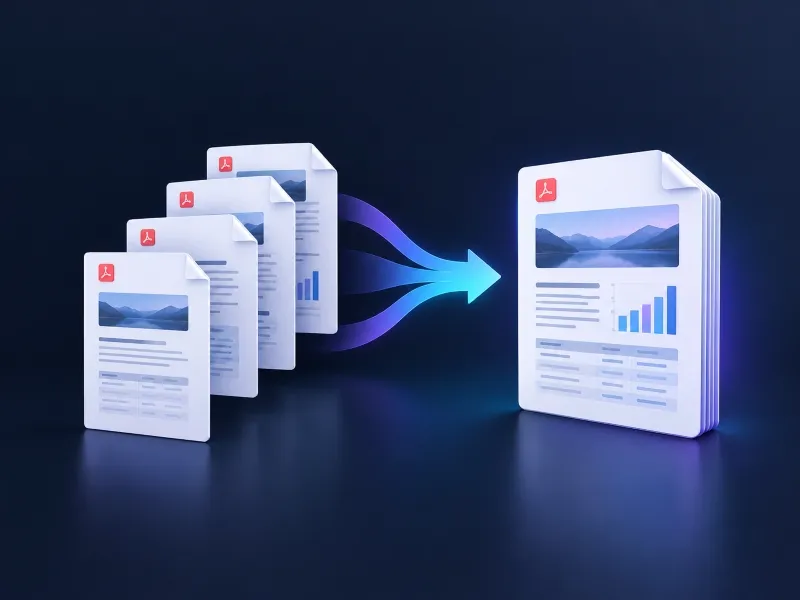
Bring Your PDF Documents Together in One Place
Working with several separate documents can make sharing, reviewing, and storing information unnecessarily complicated. DoMorely's Merge PDF tool gives you a straightforward way to combine related PDF files into one document that is easier to manage.
Use it to bring together project reports, class notes, invoices, application forms, meeting documents, or scanned paperwork. Add your files, arrange them in the right sequence, and create a single PDF that follows your preferred order.
The tool runs in your browser, so you can prepare your document without installing a separate PDF application. For best results, check that each selected file opens correctly before merging.
Start merging your PDFsA Simpler Way to Combine PDF Files
Keep related documents together with a practical PDF workflow designed for everyday tasks.
Combine Multiple PDFs
Bring separate PDF documents into one file instead of sharing several attachments individually.
Arrange Your File Order
Move documents up or down before merging so the final PDF follows the sequence you need.
Download One PDF
Save your combined document as a single PDF file ready for your next step.
Process Files in Your Browser
The merge operation runs locally in your browser after the PDF library loads, without uploading selected documents to our server.
A Straightforward Workflow
Select files, review their order, merge, and download—all from one focused tool.
Keep Documents Organized
Create a single, convenient file for related records, reference materials, and project documents.
How to Merge PDF Files in 3 Easy Steps
You do not need a complicated workflow to combine your documents. Follow these simple steps.
Select Your PDF Files
Choose at least two PDF documents from your device or drag them into the upload area.
Arrange the Documents
Review your selected files and use the up and down controls to set the order of the final document.
Merge and Download
Select Merge PDF Files and download your combined document when processing is complete.
Ready to organize your documents?
Combine your PDF files with a few simple steps.
When Should You Combine PDF Documents?
A merged PDF can make document sharing and organization easier in many common situations.
Work Reports
Bring related reports, summaries, and supporting documents together.
Study Materials
Combine lecture notes, worksheets, and revision materials.
Invoices and Records
Keep related invoices, receipts, and reference records in one file.
Applications and Forms
Prepare a single document containing the relevant application pages.
Frequently Asked Questions About Merging PDFs
Learn how the Merge PDF tool works and what to check before combining your documents.
How do I merge PDF files online?
Open the DoMorely Merge PDF tool, select at least two PDF files, arrange them in your preferred order, and click Merge PDF Files. When the process finishes, download the combined PDF to your device.
Can I change the order of PDF files before merging?
Yes. After selecting your files, use the up and down controls beside each filename. The tool combines the PDFs in the order displayed in the selected-file list.
Are my PDF files uploaded to DoMorely?
The merge operation runs in your browser, and the selected PDF contents are not sent to the DoMorely server by this tool. The PDF library is loaded from a third-party CDN, so your browser must be able to load that library. Avoid using a shared or untrusted device for confidential documents.
Can I merge more than two PDF files?
Yes. You can select multiple PDFs at once and add more files before merging. The number and size of files your device can process depend on available browser memory and system resources.
Will merging PDFs reduce their file size?
Not necessarily. Merging combines documents into one PDF but does not automatically compress their contents. If you need a smaller file, use a dedicated PDF compression tool after merging.
Will the merged PDF keep the original page order?
The tool preserves the page sequence inside each selected PDF and combines the documents according to the file order you set before starting the merge.
Why might a PDF fail to merge?
A file may be damaged, password-protected, unsupported, or too large for the available browser memory. Try opening the file first, removing password protection where you are authorized to do so, or processing fewer files at a time.
Learn More About the PDF Format
Need background information about PDF documents? Explore the official Adobe resource to learn about the format and common document workflows.
Learn About PDF